Filing History
Getting Started · Company Profile & QuickBooks · Projects · Unions & Dispatch · Generating Forms · Sending & Delivery · Address Book · Filing History · Tips & FAQ
Filing History
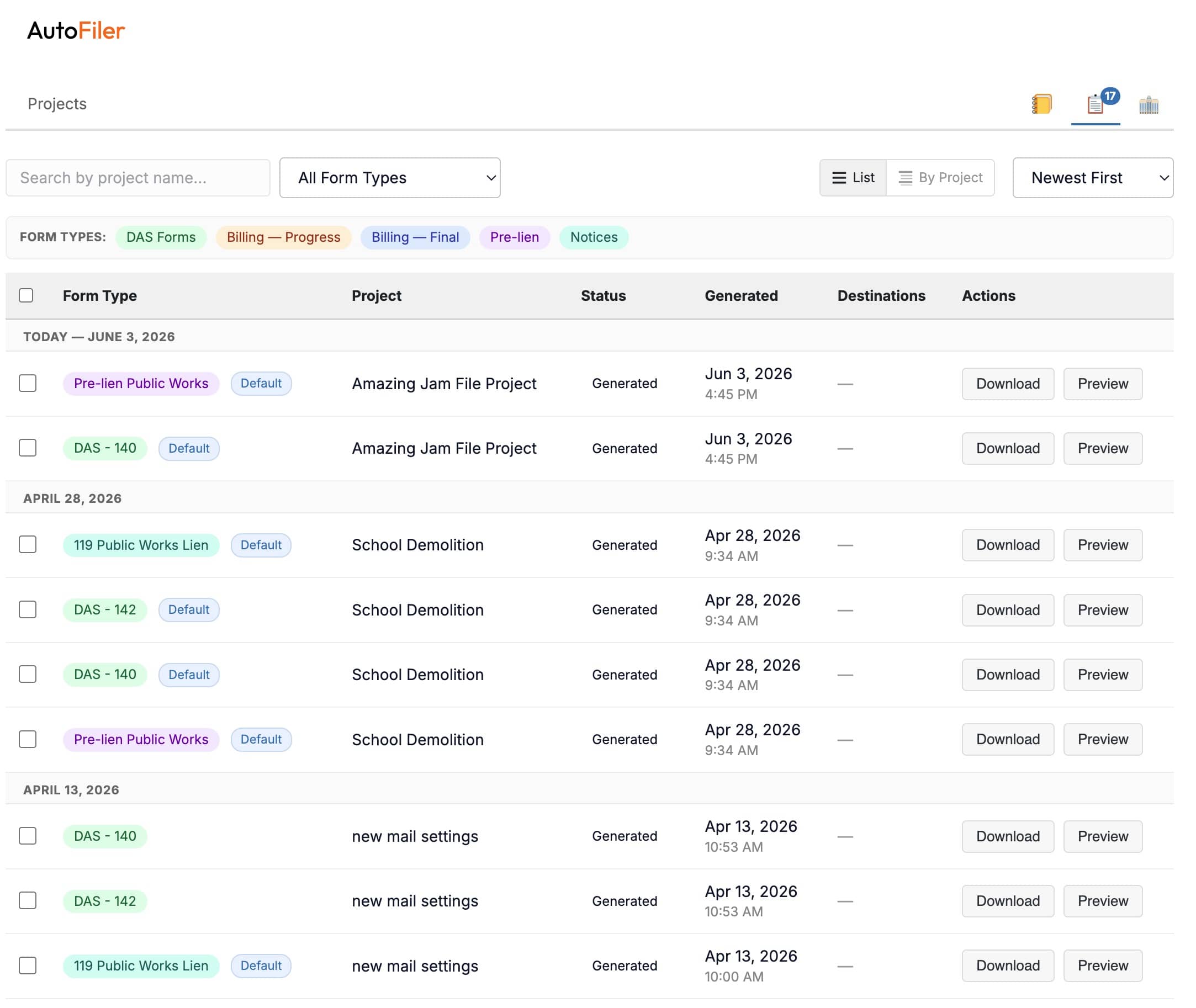
Click the Filing History icon (📋) in the dashboard tab bar to view a record of every form you’ve generated. The badge on the icon shows your total filing count.
Each entry shows the form type (color-coded by category), project name, status (Draft or Paid), generation date and time, and any destinations the form was sent to.

Views
Toggle between two views using the buttons in the toolbar:
- List — A flat chronological list grouped by date (Today, Yesterday, older dates).
- By Project — Filings grouped under their project name with filing counts.
Search, Filter & Sort
Use the toolbar to search by project name, filter by form type, or sort by date or form type. Pagination controls let you navigate through large filing histories a page at a time.
Form Type Color Key
Each filing’s badge is colored by category so you can scan the list at a glance:
- Green — DAS Forms (DAS-140, DAS-142)
- Orange — Billing Progress (Conditional & Unconditional Progress)
- Blue — Billing Final (Conditional & Unconditional Final)
- Purple — Pre-lien (Private & Public Works)
- Teal — Notices (119 Public Works Lien)
Actions
Each filing has two action buttons:
- Download — Save the PDF to your computer. This is free if the filing is already paid; a still-unpaid Draft costs 1 credit to download for the first time. Re-downloading a form you’ve already paid for is always free.
- Preview — Expand an inline preview of the PDF without leaving the page. Previewing is always free, so you can check your work before committing a credit.
Mail Tracking
For any form you’ve mailed through USPS, the destination row keeps you up to date without you having to check anywhere else. Each mailed destination shows:
- Mailing tier badge — First Class, Certified, or Cert+RR (Certified with Return Receipt), so you can see exactly how each letter went out.
- Delivery status — color-coded as the letter moves (mailed → in transit → delivered, or returned to sender).
- Tracking link — a link to follow the letter once USPS scans it.
- Expected delivery date — the estimated arrival date.
These details update automatically as USPS scans the letter along its route — you don’t need to refresh or look anything up. For how to send a form by mail (and the per-tier credit costs), see Sending & Delivery.
Bulk Download
Select multiple filings using the checkboxes, then click Download as ZIP to download them all in a single file. If your selection includes unpaid drafts, you’ll be shown the credit cost first — so there are no surprises before you commit. Filings you’ve already paid for add nothing to the cost.