Unions & Dispatch (DAS-140 & DAS-142)
Getting Started · Company Profile & QuickBooks · Projects · Unions & Dispatch · Generating Forms · Sending & Delivery · Address Book · Filing History · Tips & FAQ
Unions & Dispatch (DAS-140 & DAS-142)
On a public works job you notify each apprenticeship committee twice: a DAS-140 (Contract Award Information) once when the job is awarded, and a DAS-142 (Request for Dispatch of an Apprentice) each time you need apprentices on site. AutoFiler’s union roster lets you enter each union once and then fills both forms for every union automatically — so you can send the DAS-140 to all of them in one pass and fire off the DAS-142 in repeatable rounds.
The Union Roster
Open a Public Works project and scroll to Unions / Apprenticeship Committees on This Job. Add each union once and AutoFiler automatically builds a DAS-140 and a DAS-142 for it (matched to the union’s name) — no need to type the union list twice.
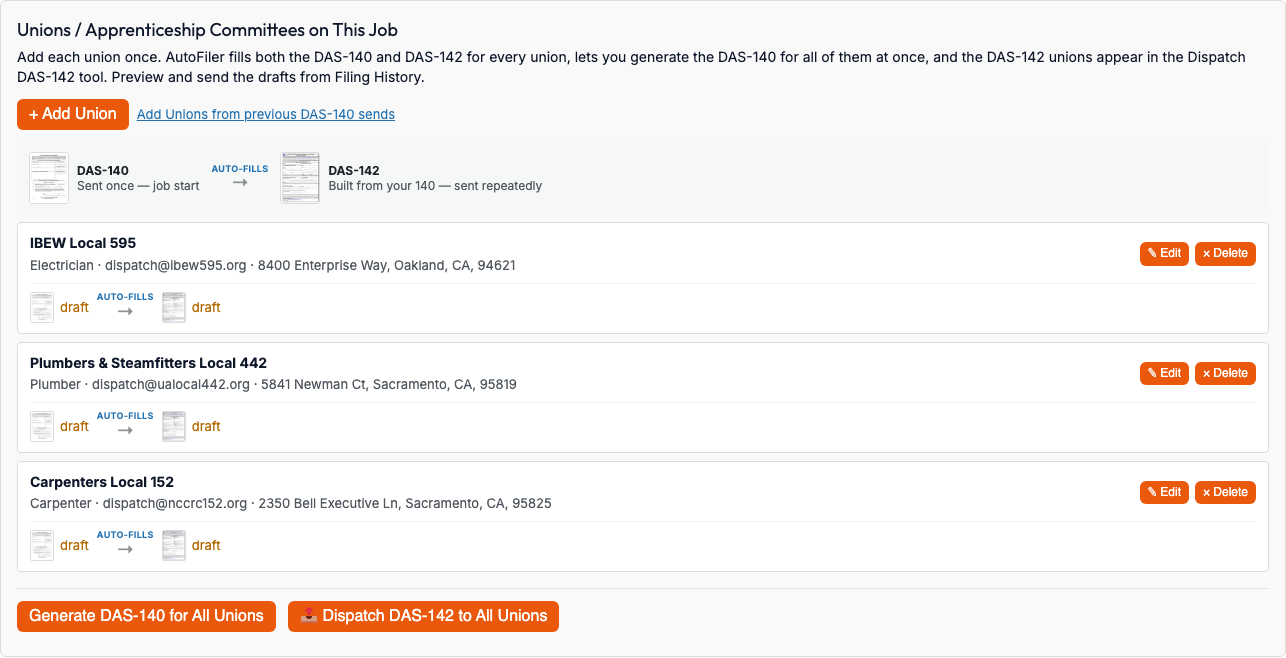
The little legend at the top is the whole idea in one line:
- DAS-140 — sent once, at job start.
- DAS-142 — built from your 140 and sent repeatedly, one round each time you need apprentices.
Adding a union
Click + Add Union and enter the committee’s contact and mailing details. You can also pull a committee you’ve saved before straight from your Address Book with Fill from Address Book.
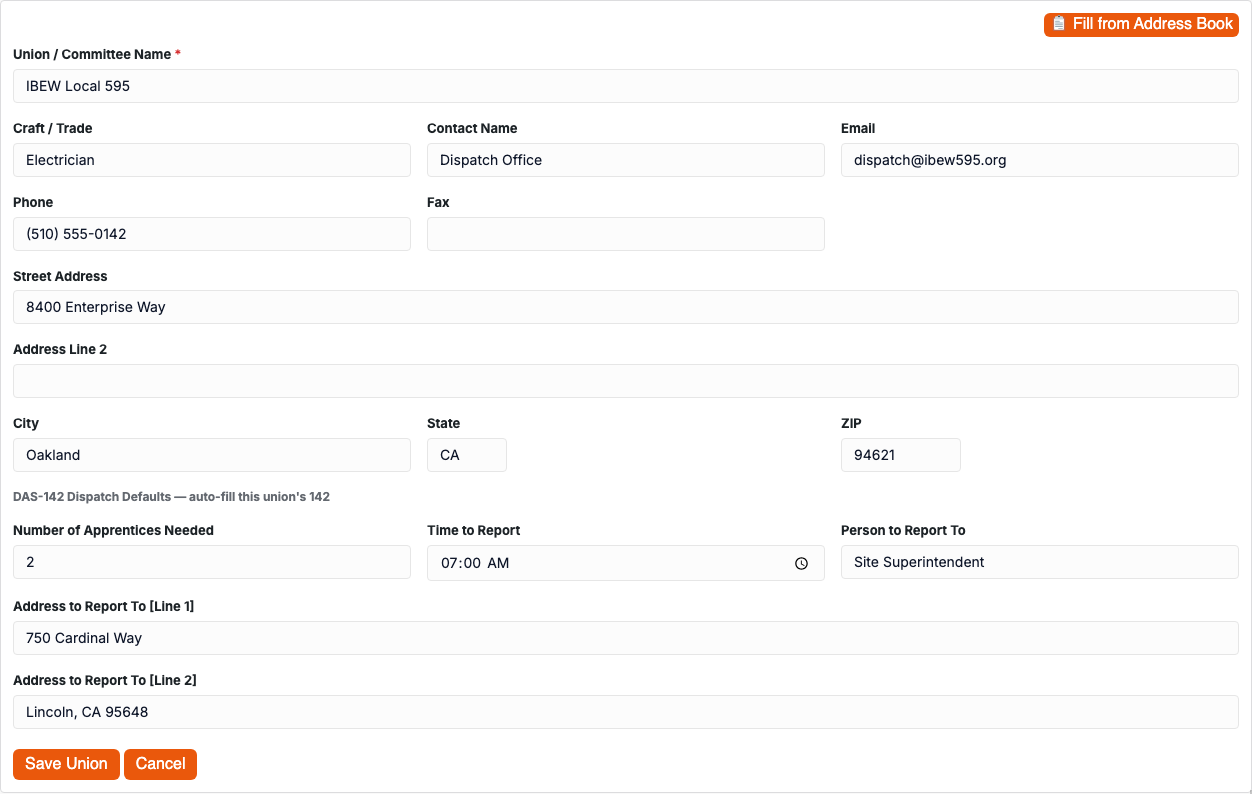
DAS-142 Dispatch Defaults
The fields under DAS-142 Dispatch Defaults are the details that repeat on every dispatch for this union:
- Number of Apprentices Needed
- Time to Report
- Person to Report To
- Address to Report To (Line 1 & Line 2 — with Google address lookup)
Enter them once on the union and they flow onto that union’s DAS-142 automatically. The report date is intentionally left off here — it changes every round, so you set it per round (see Dispatch Rounds below). If you’ve stored these defaults on the committee’s Address Book entry, Fill from Address Book drops them in too.
Already sent DAS-140s before?
If you’ve sent DAS-140s on past jobs, click Add Unions from previous DAS-140 sends to seed the roster from those recipients automatically — no re-typing.
Send the DAS-140 to Every Union
Once your roster is set, click Generate DAS-140 for All Unions. AutoFiler produces a draft DAS-140 for each union — free, like all generation. Then preview and send them from Filing History: download, email, or USPS-mail each one. (Mailing tiers and the no-login recipient reply are covered in Sending & Delivery.)
DAS-142 Dispatch Rounds
The DAS-142 goes out again and again as the job needs apprentices — and usually the only thing that changes between rounds is the date. Click 📤 Dispatch DAS-142 to All Unions to open the dispatch tool.
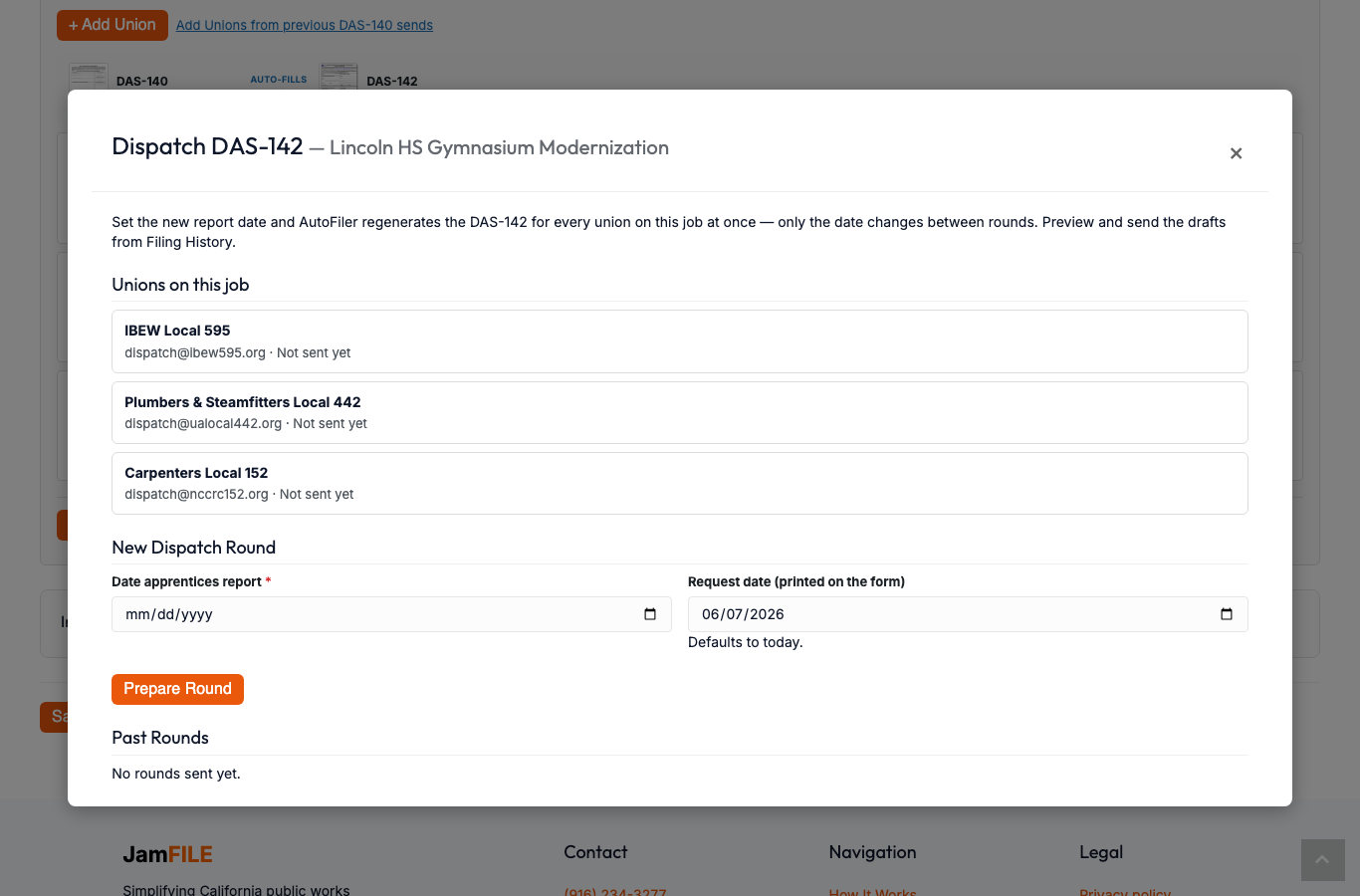
Set the Date apprentices report (and, if you want, the Request date printed on the form — it defaults to today), then click Prepare Round. AutoFiler regenerates a correctly-dated DAS-142 draft for every union on the job in a single step. Preview and send the round’s drafts from Filing History, and each round is logged under Past Rounds.
Because only the date changes, you can prepare a new round in seconds every time the job needs more apprentices.
Let Committees Reply — No Account Needed
When you email a DAS-142, the committee gets a secure link to reply with no login: they can acknowledge receipt, confirm dispatch (apprentice name + report date), or report unable to dispatch (with a reason). Their answer flows straight back into your dashboard so you can see where every request stands. Full details are in Sending & Delivery → Recipient responses.
Tips
- One version per union. The roster keeps a separate DAS-140 and DAS-142 version for each union, so you can send and track every committee independently.
- Editing a union re-syncs its forms. Saving a union updates both forms — but it never wipes a value you typed directly on the 142 (a blank union field leaves the 142 as-is).
- Deleting a union removes it from the roster but leaves any forms you’ve already generated for it in place.
- Generation is always free. You only spend a credit when you download, email, or mail a finished form.