Sending & Delivery
Getting Started · Company Profile & QuickBooks · Projects · Unions & Dispatch · Generating Forms · Sending & Delivery · Address Book · Filing History · Tips & FAQ
Sending & Delivery
Once a form is generated, getting it to the right people is the last step. AutoFiler gives you three ways to deliver a finished form — download it as a PDF, email it with the PDF attached, or have it printed and mailed via USPS for you. And for DAS-142 dispatch requests, the apprenticeship committee you email can reply with no account and no login, so their answer comes straight back to your dashboard.
Remember the credit model: generating and previewing forms is always free. You only spend a credit the first time you download, email, or mail a form — and after that first commit, downloading or re-sending the same form is free.
Destinations
Before you send anything, you tell AutoFiler who should receive each form. You do this on Step 3 (Destinations) of the form wizard. Each form type has its own collapsible section, so you can send the DAS-142 to the apprenticeship committee while the Pre-lien goes to the property owner — all in one pass.
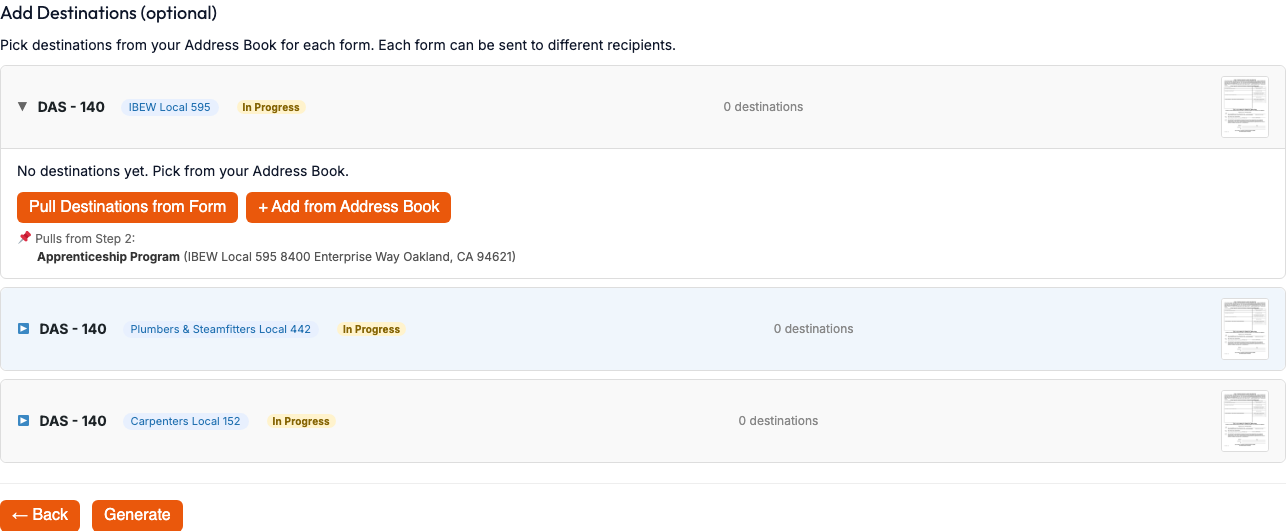
There are two fast ways to add recipients:
- Pull Destinations from Form — AutoFiler reads the address fields already on the form (the committee, owner, agency, etc.) and turns them into ready-to-use destinations. No re-typing.
- Select from Address Book — Pick recipients from your saved contacts, or add a brand-new contact right from the picker. (See the Address Book page for how saved contacts work.)
Step 3 is optional — if you only need to download the PDF, you can skip it and go straight to the next step.
Download & Preview
On Step 4 (Preview & Send), each generated form appears with a status badge — Draft · 1 credit until you commit it, or Paid ✓ once you’ve used a credit on it.
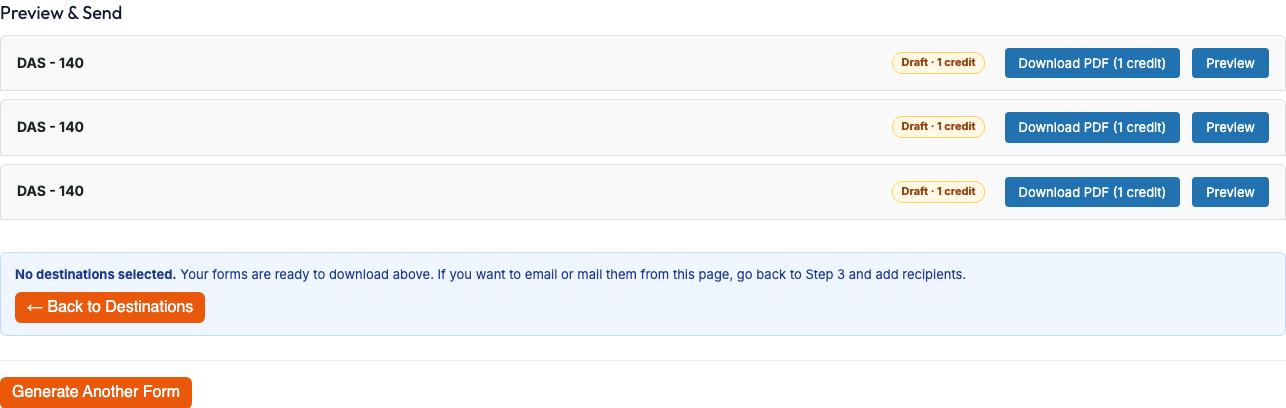
- Preview in Browser — Open the filled PDF inline to check your work. This is completely free — no credit is charged, so you can review every form before paying.
- Download PDF — Save the finished form to your computer. The first download commits the form and costs 1 credit. After that, downloading the same form again is free.
Click Send Emails to email the form (with the PDF attached) to the destinations you set up in Step 3. The first email send for a form costs 1 credit per form; once that form is committed, re-sending it to the same or new recipients is free.
AutoFiler records the date and time each email went out, and that sent status persists across page reloads — so you can always see exactly what was sent and when, even after you close your browser and come back later. Your credit balance updates live in the dashboard header as you send.
Mail via USPS
Don’t have a printer or a stamp handy? AutoFiler can print and physically mail your forms for you through the postal service — no envelopes, no trip to the post office.
Choose a mailing tier
On Step 4, when you choose Mail via USPS, you pick how the letter goes out:
- First Class — Standard first-class mail.
- Certified — Certified mail with proof of mailing and delivery tracking.
- Certified + Return Receipt — Certified mail plus a return receipt confirming who signed for it.
The Certified options appear only when the site has enabled them; if you only see First Class, certified mailing isn’t turned on for your account.
What it costs
Mailing combines a one-time activation with a per-letter charge:
- 1 credit activation — charged the first time you commit the form (the same first-commit credit as a download or email).
- Per-letter credits by tier — each physical letter costs additional credits depending on the mailing tier you chose. After the form is committed, you only pay the per-letter credits on later mailings.
Print in color & your letterhead
You can tick Print in color if your form benefits from color printing. Every mailed letter also leads with a branded cover sheet carrying your company letterhead — your name, address, phone, and license — so the recipient sees a professional, identifiable mailing and the form’s own first page stays clean.
Tracking
After a letter is mailed, its tracking link, delivery status, and expected delivery date appear in Filing History, where the status updates automatically as the letter moves through the mail stream.
Recipient Responses (DAS-142, no login)
Here’s the part that changes how dispatch works. When you email a DAS-142 (Request for Dispatch), the apprenticeship committee receives a secure link to reply — with no account and no login. They click, answer a short form, and you’re done chasing them by phone.
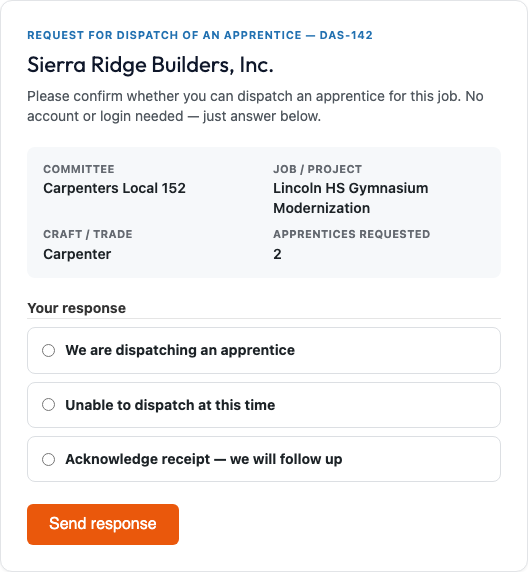
On that page the committee can:
- Acknowledge receipt — confirm they received your request.
- Confirm dispatch — tell you the apprentice’s name and the report date.
- Report unable to dispatch — let you know they can’t fill the request, with a reason.
Whatever they choose flows straight back into your dashboard: you’ll see a response badge in the Dispatch view, in the form’s activity, and on the filing’s status — so you always know where each request stands without leaving AutoFiler.
Every emailed send gets its own link. That means each dispatch round is tracked separately — a committee’s reply to this week’s request never gets confused with last month’s. To send the DAS-142 to many committees in repeatable rounds, see Unions & Dispatch.
Tips
- Preview before you pay. The in-browser preview is free on every form — use it to catch a typo before you spend a credit.
- The first commit is the only charge. Once a form is Paid, downloading it again and re-sending it (by email or mail) is free.
- Pull destinations from the form. If the recipient is already on the form (a committee, owner, or agency), let AutoFiler extract the address instead of retyping it.
- Email the DAS-142 to unlock replies. The no-login response link is only attached when you email a DAS-142 — so email is the way to get acknowledgements and dispatch confirmations back.
- Track mailed letters in Filing History. Tracking links and delivery status live there, updating on their own as USPS scans the letter.
Next: track everything you’ve sent — downloads, emails, mailings, and responses — in Filing History.