Projects
Getting Started · Company Profile & QuickBooks · Projects · Unions & Dispatch · Generating Forms · Sending & Delivery · Address Book · Filing History · Tips & FAQ
Projects
A project is a single contract or job. Everything AutoFiler does — every form, version, destination, and filing — hangs off a project, so this is where you set up the details that auto-fill the rest of your paperwork. You can create as many projects as you need.
The Projects tab is the default view when you open the AutoFiler dashboard. Click + Add New Project to get started. You’ll be asked to name your project, then the full edit form opens with auto-save already active — your changes are saved automatically as you work, so you won’t lose progress if you navigate away or close your browser.
Project Type & Contractor Role
These two settings at the top of the project form are the most important choices you’ll make — they control which forms are available and how fields auto-fill.
Project Type determines which forms appear in the wizard:
- Public Works — Pre-lien Public Works, DAS-140, DAS-142, 119 Public Works Lien
- Private — Pre-lien Private, Conditional Progress, Unconditional Progress, Conditional Final, Unconditional Final
Contractor Role controls which party fields auto-fill from your Company Profile:
- Direct Contractor — Your company fills the “Contractor” fields; subcontractor fields are manual.
- Subcontractor — Your company fills the “Subcontractor” fields; contractor fields are manual.
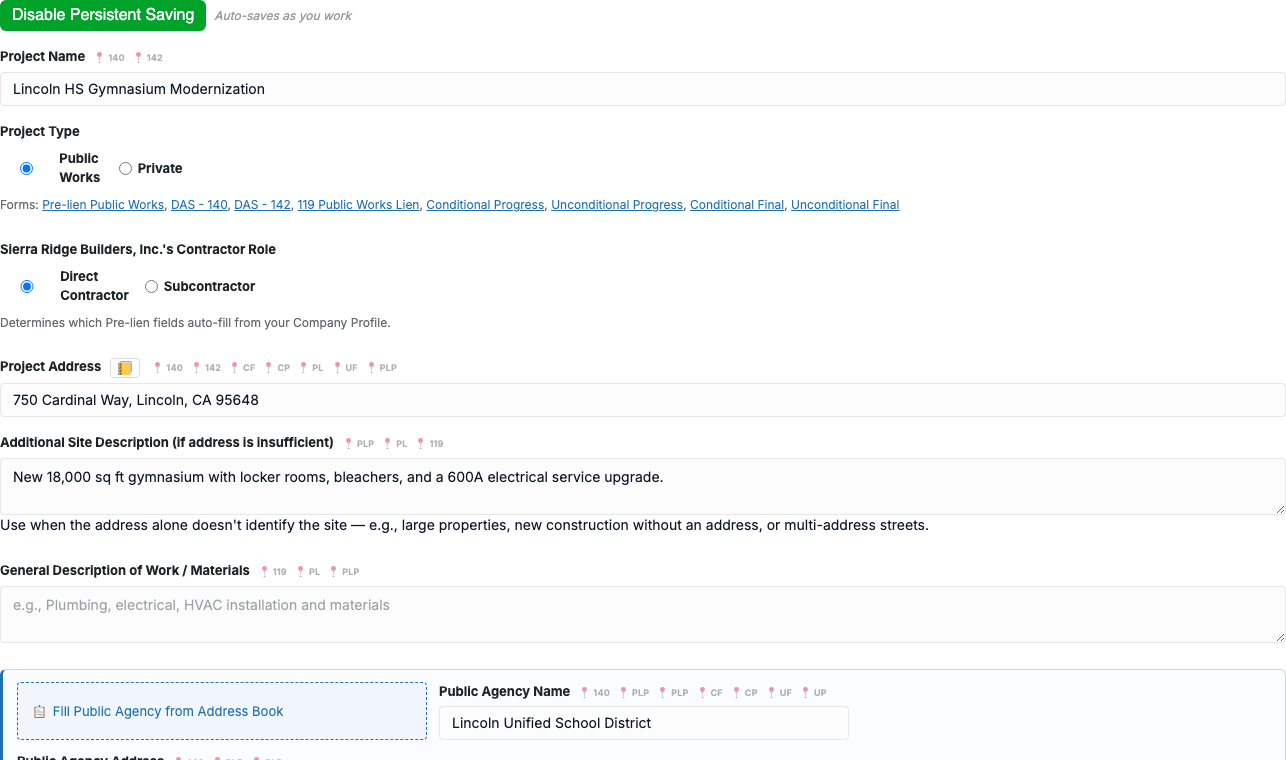
Project Fields
Fill in as much as applies to the job — the more you complete, the more auto-filling happens later in the wizard.
- Project Name — A descriptive name for the project (e.g., “Downtown Library Renovation”).
- Project Address — The job site location (Google address autocomplete available).
- General Description of Work / Materials — What you’re providing on this project. This value automatically fills the work description fields on Form 119, Pre-lien Private, and Pre-lien Public Works.
- Public Agency Name & Address (Public Works) or Customer / Property Owner (Private) — The awarding agency or property owner. These fields are grouped together and can be filled from your Address Book with one click.
- Contract Number — The contract or bid number.
- PWC Project Number — The DIR PWC project number (Public Works only).
- Total Contract Amount — The full contract value.
- Sub Contract Amount — Your subcontract amount (if applicable).
- Contract Execution Date, Expected Start Date, Expected End Date — Key project dates.
Subcontractors
If your Contractor Role is Direct Contractor, you’ll see a Subcontractors panel below the project fields. Click + Add Subcontractor to add the subcontractors working on the project. Their details (name, license, address, trade) are stored per-project and can auto-fill Pre-lien Public Works forms. You can also fill subcontractor details from your Address Book with one click.
Information Requests
Below the Subcontractors panel, you’ll find the Information Requests section. This lets you send a Pre-Lien & Billing Information Request to subcontractors, property owners, construction lenders, or other parties. The recipient receives an email with a link to a secure form where they fill in their company and project details.
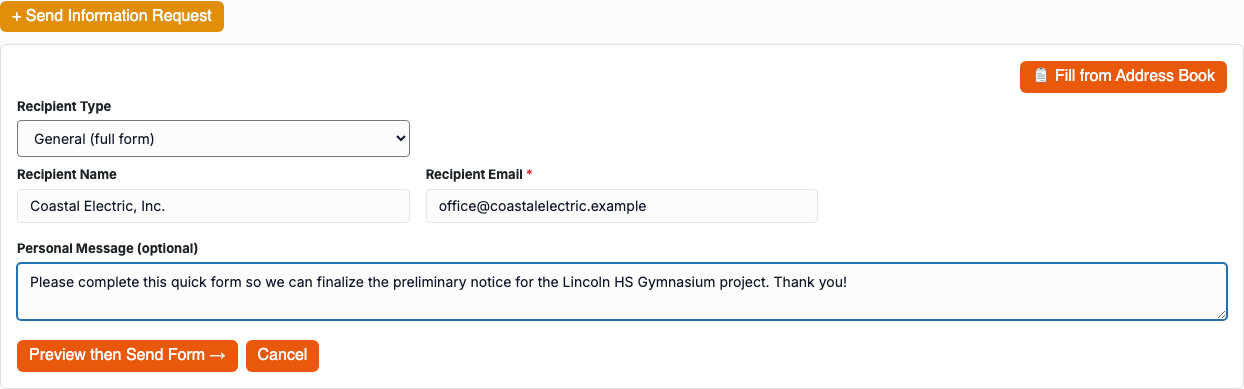
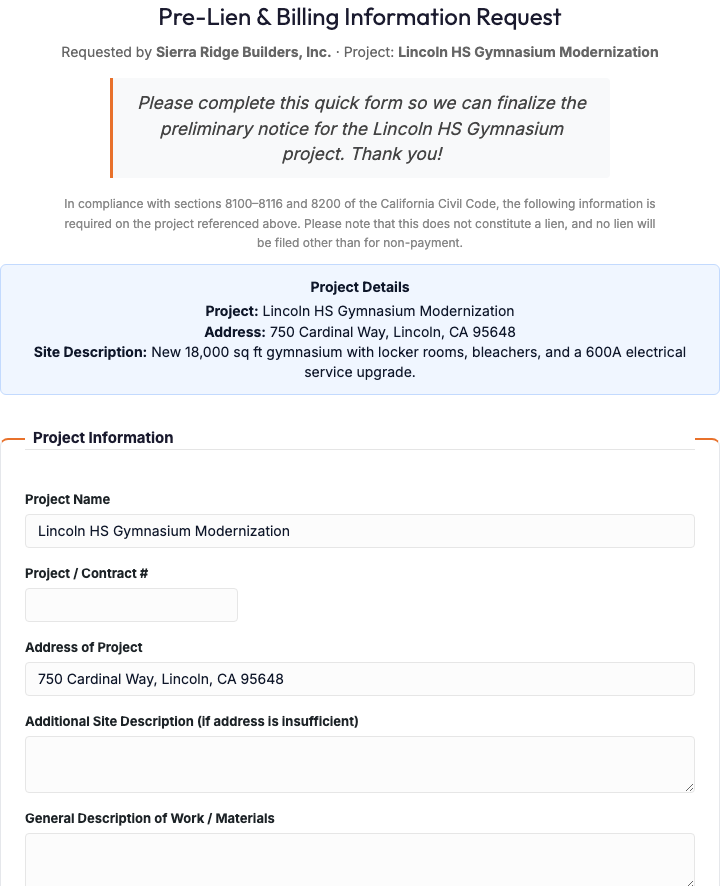
When the recipient completes the request, their submitted data is automatically available to import into your form fields — no manual data entry needed. You can link each Information Request to a specific subcontractor, and the response data flows directly into the relevant form fields.
Form-Specific Fields
Below the project details, you’ll see collapsible sections for each form type (for example, DAS-140 fields, DAS-142 fields). These let you pre-fill form-specific values — like apprenticeship committee contacts, service method details, or party information — that don’t come from your company or project data.
Filling these out ahead of time saves you work when generating forms later, since the values carry over automatically into the form wizard.
Finding Projects: Search, Filters & Sort
The Projects tab has a search box and a row of filters above your project list, so you can find any job in seconds — even across hundreds of projects. Results update as you type or change a filter, and matches are partial and forgiving (you don’t need the exact words or full spelling).

Smart Search
Type in the search box to match a project by almost anything stored on it:
- Project name
- Customer / property owner name
- Address — project address, customer address, public agency address, and any extra site description
- Contract number and PWC project number
- Filing contents — text inside the PDFs you’ve already generated for a project. Search a name, dollar amount, apprenticeship committee, or any value that appears on a form, and the project it belongs to shows up — even when that text isn’t part of the project’s own fields.
Filters
- Form Type — Show only projects that have a particular form (for example, every project with a Pre-lien, or every project with a DAS-140). A project matches whether you’ve set that form up or already generated it.
- Status — Active, Completed, or Archived.
- Date range — Choose which date to filter on — Created, Contract date, or Start date — then set a From and/or To date. Note: filtering by Contract date or Start date only includes projects that actually have that date filled in.
Sort & Clear
Use Sort to order the list by Newest or Oldest, Name (A–Z or Z–A), Contract Date, or Status. Whenever a search or filter is active, a Clear filters button appears — click it to reset the search, status, form type, and dates in one step (your sort choice stays).
Tip: Your search and filters are saved in the page address, so you can bookmark or share a filtered view, and reloading the page keeps your filters in place.
Project Actions
Each project row has an Actions dropdown with options to:
- Choose Form — Jump to Step 1 of the form wizard.
- Fill Fields — Jump directly to Step 2 (if forms are already selected).
- Destinations — Jump to Step 3.
- Preview & Send — Jump to Step 4 (if forms are already generated).
- View Summary — See a read-only summary of all project data, subcontractors, and Information Request responses.
- Delete — Remove the project.
Next: Generate Your Forms
With your project set up, you’re ready to produce paperwork. Head to Generating Forms to walk through the 4-step wizard — choose your forms, fill the fields with a live PDF preview, and generate your drafts for free.